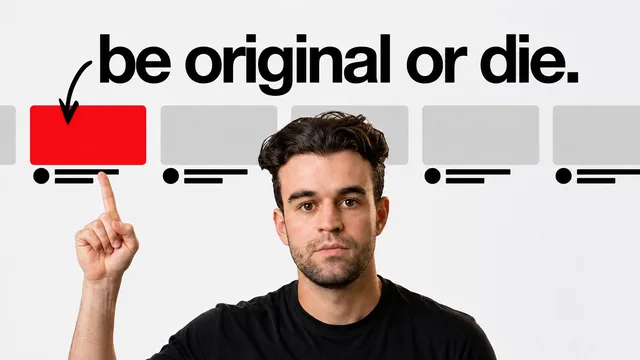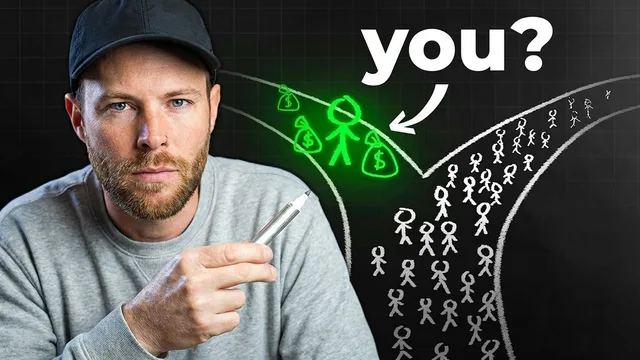
You have a screenshot, a photo from your shoot or a frame pulled from your video and you know it holds the right idea. But an image is not a thumbnail. Dropped straight onto YouTube it gets lost in the feed, loses its impact at small size and fails to communicate anything in the half second a viewer gives it. So how do you turn an image into a thumbnail that actually converts? Understanding the difference is what separates videos that get clicked from videos that get scrolled past.
Because turning an image into a thumbnail is a transformation not a resize. A raw image is simply a capture of a moment. A thumbnail is packaging engineered for attention with a clear focal point, strong contrast, an expressive subject and an idea readable at a glance on a mobile screen. Cropping and adding text on top is not enough. The image has to be rebuilt around what makes viewers click which is exactly what most creators get wrong.
Whether your starting point is a product photo, a video frame, a selfie or a simple visual reference there is a clear method to turn it into something that performs. From isolating the subject to building contrast and adding the right emotional cue every step serves one goal which is earning the click.
This is exactly what Pikzels, it's ai thumbnail generator available at pikzels.com does with AI. You bring your image and your context and it transforms them into a real thumbnail built for click-through rate rather than just a prettier picture. With over 5.1 million videos packaged & 7.1 billion views generated, it's trusted by creators worldwide.
In this article we explain how to turn an image into a thumbnail that converts.
What Is the Difference Between an Image and a Thumbnail?
Understanding the difference between an image and a thumbnail is the foundation of everything that follows. They may look similar in a file browser but they serve fundamentally opposite purposes. One captures a moment while the other is engineered to earn a click. Here is the comparison.
Table: image vs thumbnail
Criterion | Image | Thumbnail |
|---|---|---|
Purpose | Capture or document a moment | Earn the click in a crowded feed |
Viewing size | Full screen or large format | Small, often on mobile |
Viewing time | Seconds to minutes | Half a second at most |
Composition | Can be detailed and layered | One clear focal point |
Contrast | Natural and balanced | Deliberately amplified |
Emotion | Optional | Essential to stop the scroll |
Success metric | Aesthetic quality | Click-through rate |
As the table shows the gap between the two is not cosmetic but structural. The first fundamental difference is purpose. An image exists to capture or document something. A thumbnail exists to convince someone to click. This changes every decision you make about composition, color and framing because you are no longer optimizing for beauty but for persuasion.
The second difference is viewing size and time. Your image may look excellent at full resolution on a desktop screen. Your thumbnail will be seen at a fraction of that size on a phone for less than a second. Details that carry an image completely disappear at thumbnail scale which is why a beautiful photo often makes a terrible thumbnail.
The third difference is composition and contrast. An image can afford depth, subtlety and multiple points of interest. A thumbnail needs one dominant subject, clean separation from the background and amplified contrast so it reads instantly. Anything that competes for attention weakens the whole.
The fourth difference is emotion. An image can be neutral and still be excellent. A thumbnail without an emotional cue rarely performs because humans respond to expressive faces and visible tension far more than to a well-composed but flat visual.
The fifth difference is the success metric. An image is judged on how good it looks. A thumbnail is judged on click-through rate alone. A thumbnail that looks average but generates clicks beats a stunning one that nobody clicks.
Turning an image into a thumbnail means rebuilding it around these criteria which is exactly what Pikzels available at pikzels.com does with AI.
How to Turn an Image Into a Thumbnail Step by Step?

Turning an image into a thumbnail follows a clear process that rebuilds your visual around click-through rate rather than aesthetics. Each step serves one goal which is making your thumbnail readable and compelling in half a second. Here is how to turn an image into a thumbnail step by step.
- Define the single idea your thumbnail must communicate
- Isolate and enlarge your main subject
- Clean up or replace the background
- Amplify contrast and color separation
- Reinforce the emotion
- Add minimal text only if it adds meaning
- Test at small size and refine
The first step is to define the single idea. Before touching the image decide what one message it must convey and what feeling it should trigger. A thumbnail carrying two ideas carries none. This decision guides every choice that follows.
The second step is to isolate and enlarge your subject. Whatever matters most in your image needs to dominate the frame. Crop aggressively and scale up. What feels oversized on your desktop screen is usually correct at thumbnail size on a phone.
The third step is to clean up or replace the background. A busy background competes with your subject and destroys readability. Simplify it, blur it or replace it entirely with something that supports your idea rather than distracting from it.
The fourth step is to amplify contrast and color separation. Push the separation between your subject and its background well beyond what looks natural. Saturated colors and strong luminosity contrast are what make a thumbnail pop in a feed full of competing visuals.
The fifth step is to reinforce the emotion. If your image contains a face make the expression unmistakable. If it does not add a visual cue that creates tension, surprise or curiosity. Emotional flatness is the most common reason a thumbnail underperforms.
The sixth step is to add minimal text only if it adds meaning. Three or four words maximum in a bold readable font. Text should complete the idea not repeat your title. When in doubt leave it out.
The seventh step is to test at small size. Shrink your thumbnail to the size it will actually appear and check that the idea still reads instantly. If it does not go back and simplify further.
With Pikzels available at pikzels.com you upload your image, describe your context and the AI handles this entire transformation in seconds.
How Can Pikzels Turn Your Image Into a Thumbnail That Converts?
Pikzels handles the entire transformation from raw image to click-ready thumbnail in seconds. You bring the visual and the context and the AI rebuilds it around performance. Here is how Pikzels turns your image into a thumbnail that converts.
- Context-based transformation by turning your image and your idea into a finished thumbnail
- Instant refinement through simple text instructions with no design skills needed
- Persona consistency by keeping your face recognizable across every video
- Style consistency by applying your saved visual identity to each thumbnail
- Proven format recreation by rebuilding layouts that already perform in your niche
- Data-backed scoring through the Pikzels Score and its One-Click Fix
Context-based transformation
The first capability is turning context into packaging. You upload your image and describe what your video is about. Pikzels does not simply filter or crop your visual, it rebuilds it around what makes viewers click by strengthening the subject, the contrast and the focal point. The result is a thumbnail engineered for click-through rate rather than a prettier version of your original image.
Instant refinement without design skills
The second capability is refinement through plain language. If something is not right you type what should change and the thumbnail updates immediately. No layers, no masks, no software to learn. This removes the technical barrier that usually forces creators to either spend hours in Photoshop or hire a designer.
Persona and face consistency
The third capability is Persona. You upload three photos of yourself once and Pikzels can then place your face naturally into every thumbnail you generate. Your appearance stays recognizable across all your videos without new photoshoots which is one of the strongest drivers of channel recognition in the feed.
Style consistency across your channel
The fourth capability is Style. By saving three of your thumbnails Pikzels learns your visual identity and applies it consistently. Every upload feels part of the same brand which is exactly what distinguishes channels that grow from channels that look random.
Proven format recreation
The fifth capability is recreating what already works. Paste a YouTube link and Pikzels rebuilds that proven format with your own image and idea. You start from a layout the market has already validated rather than guessing.
Data-backed scoring and fixes
The sixth capability is the Pikzels Score which analyzes your thumbnail across virality, clarity, idea, curiosity and emotion. The One-Click Fix then applies improvements instantly.